Send Controls allows Owners/Admins restrict and manage which email addresses users can send from in HQ — including bulk tools for adding senders, importing via CSV, and viewing per-user access.
-png.png)
Table of Contents:
- Adding an email address to Send Controls
- Adding members as approved senders
- Bulk adding approved senders to a send-from address
- Bulk importing/exporting send-from addresses via CSV
- Bulk importing/exporting approved senders via CSV
- Viewing series usage
- How to edit send-from name
- Managing senders from series settings
- Send-from view for approved members
- Viewing a user's send-from access
- FAQs
1. Adding an email address to Send Controls
🛠️ How it works:
- Navigate to the "Settings" button on the far left panel and click "Send controls."
- Click on "Add email address"
- Add the specific email address that you would like to lockdown. Send-from names are optional.
2. Adding members as approved senders
🛠️ How it works:
- Navigate to the "Settings" button on the far left panel and click "Send controls."
- Choose the desired send-from email address.
- Click on "Add approved sender."
- Next, add the member you want to give send-from email permission to.
3. Bulk adding approved senders to a send-from address
🛠️ How it works:
- Navigate to the "Settings" button on the far left panel and click "Send controls." Each send-from address row has a checkbox on the left.
- Check one or more rows to select the addresses you want to update. A "1 selected" counter and a "+ Add approved senders" button appear in the top right above the table.
- Click "+ Add approved senders." The "Add sender access" modal opens, showing the selected addresses as pills at the top.
- Search for and select the users you want to grant access to in the "Search users..." field.
- Click "Add" to grant those users send-from permission for all selected addresses at once.
4. Bulk importing/exporting send-from addresses via CSV
🛠️ How it works:
- Navigate to the "Settings" button on the far left panel, click "Send controls," and then click the "Manage emails" dropdown in the top-right corner.
- Click "Export CSV" to download a CSV of all your current send-from addresses (email address and name).
- Edit the CSV to add new addresses or update the send-from name on existing ones. The email address is used as a match key — it cannot be changed via CSV.
- Click "Import CSV" and upload your file. New rows create new send-from addresses; existing rows (matched by email) update the send-from name.
5. Bulk importing/exporting approved senders via CSV
🛠️ How it works:
- Navigate to the "Settings" button on the far left panel and click "Send controls."
- Click on a send-from address to open its detail page.
- Click the "Manage senders" dropdown in the top-right corner.
- Click "Export CSV" to download a list of all currently approved senders for that address.
- Add user emails to the CSV for anyone you want to grant access. Users must already be members of your organization.
- Click "Import CSV" and upload your file to add the new approved senders in bulk.
The CSV import can only add users who are already in your organization. To add a new person, invite them to your org first, then import.
6. Viewing series usage
🛠️ How it works:
- Navigate to the "Settings" button on the far left panel and click "Send controls."
- In the Series usage column, you will be able to see the amount of series the send-from email address is used in.
- Click the envelope icon to view which specific series the send-from address is being used in.
7. How to edit send-from name
🛠️ How it works:
- Navigate to the "Settings" button on the far left panel and click "Send controls."
- Next, click on the three-dot overflow menu button and select "Edit."
- Here you will be able to edit the sender name. Click "Update" to save.
8. Managing senders from series settings
🛠️ How it works:
- Open a series and click the gear icon in the top right to access Series settings.
- In the "Send controls" section, find the "Send-from email address" field. A "Manage senders" link appears to the right of the label.
- Click "Manage senders" to go directly to the Send Controls detail page for that series' default send-from address.
- From there, add or manage approved senders for that address using any of the available methods — manual add, multi-select, or CSV import.
The "Manage senders" link is only visible to Admins and Owners on orgs with Send Controls and an active custom domain.
9. Send-from view for approved members
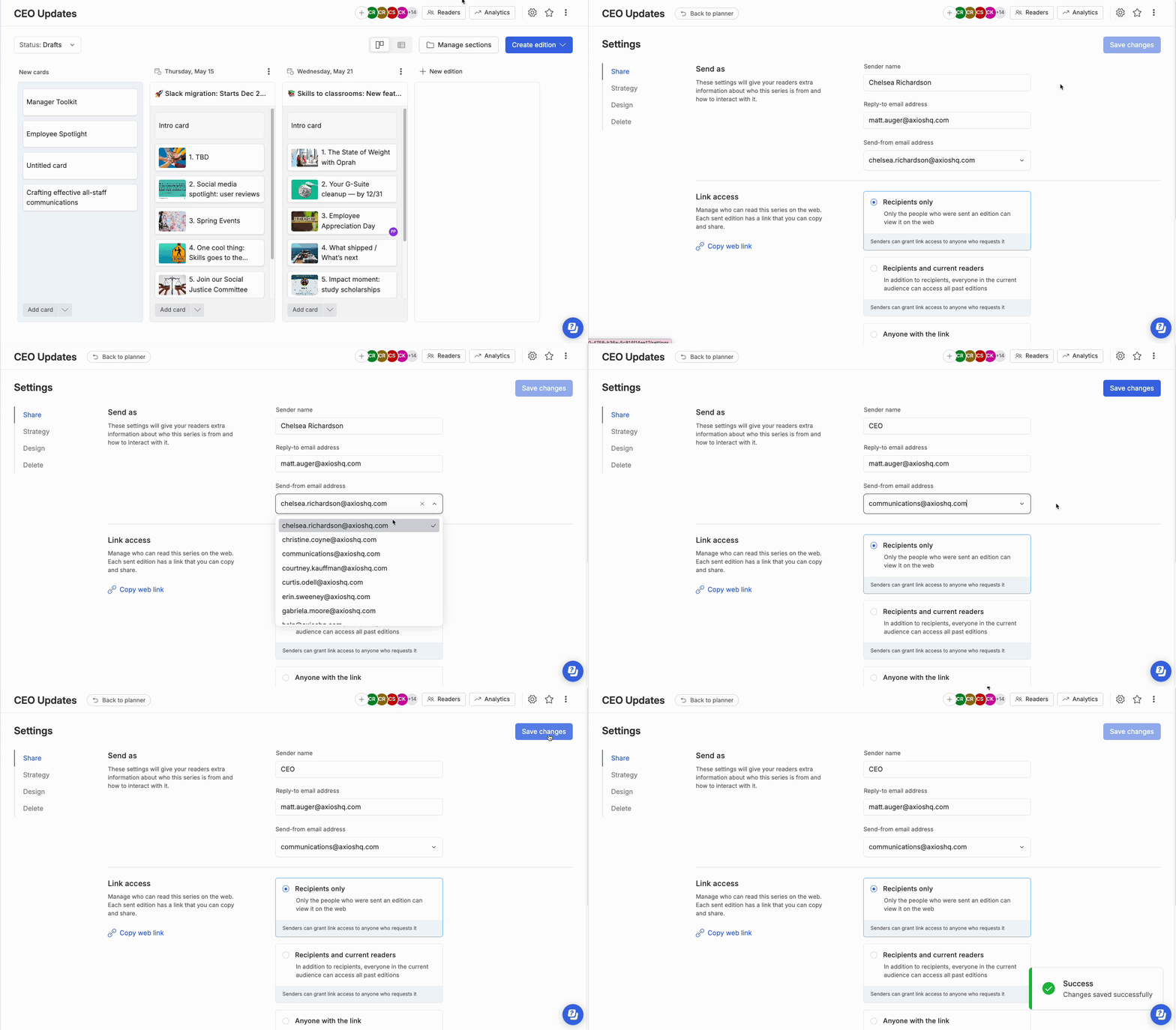
🛠️ How it works:
- Click the gear icon in the top right to access your Series settings and navigate to the Share subpage.
- Go to the send-from email address dropdown and click into the box.
- Members can select which email they'd like to send from: their own email address, one of their approved email addresses, or noreply@customdomain.com.
- If the send-from email address box is left blank, your edition will be sent from noreply@customdomain.com.
10. Viewing a user's send-from access
🛠️ How it works:
- Navigate to the "Settings" button on the far left panel and click "Users."
- Click on any user to open their detail page.
- Scroll down to the "Send as" section. This lists every send-from address the user is currently approved to use.
- To remove access, click the remove icon on the right side of any row.
- To add access, use the dropdown at the top of the "Send as" section to search for and select a send-from address from your org.
11. FAQs
What is Send Controls?
Send Controls allows admins to manage and restrict which users can send emails on behalf of specific email addresses. This feature helps organizations ensure better control over email permissions and prevent unauthorized sending.
Who has access to Send Controls?
Send Controls is available to all Premium, Premier, and Advanced organizations that have a custom domain setup in Axios HQ. Only admins will have access to the Send Controls page, where they can manage permissions.
How does Send Controls work?
Admins can lock down specific email addresses and optionally sender names to control which users can use these emails when sending. Users must be explicitly granted permission to send from these addresses.
What happens when Send Controls is enabled for my org?
The Send Controls page will display a list of email addresses that have been used to send editions in the last six months. Users who have previously sent from these email addresses will be pre-approved to continue sending.
Are sender names required?
No. Sender names are optional because email permissions operate on a one-to-one basis. If multiple series send from the same email address (e.g., communications@axioshq.com) but with different sender names, locking down sender name is not recommended.
How does this affect the Series Setting page?
All senders can send on behalf of themselves (their logged-in email) or use the no-reply fallback. If they have permission to send as another email address, that address will appear in the Send-From email dropdown on the Series Settings page.
What happens when a user attempts to send an email?
Users can verify their sender name and email address before sending via the "Sending from:" line in the send modal. If the user selects a non-approved email, the Send button will be disabled.
What if multiple senders exist in a series, but only one has permission to use an approved email?
Only the approved sender can send an edition using that email. Other senders must change the "Send-from" field to proceed.
Will Google or Outlook email permissions sync with Send Controls?
No. These permissions can only be managed within HQ. External mailbox permissions will not sync.
What's the difference between multi-select and CSV import for adding approved senders?
Multi-select is the fast in-app path for adding one or a few users to one or more addresses at once. CSV import is better for large batches — onboarding a new team, migrating to a new custom domain, or granting access to many senders at once.
Can I use CSV import to add someone who isn't in my organization yet?
No. The approved senders CSV import only accepts users already in your org. Invite the person to your organization first, then add them via CSV or the "Add approved senders" flow.
Can I change a send-from email address via CSV?
No — only the send-from name is editable via CSV. The email address is used to match existing records and cannot be updated through import.
Does bulk editing Send Controls support bulk delete?
Not in this release. Removing access is intentional and done one row at a time to avoid accidentally revoking permissions and blocking active senders.